Assigned to me
Active tasks assigned to you — including the ones you created for yourself. In a single-member workspace every task is assigned to you automatically, so everything works the same when your workspace grows.
The CommsRadar product
One intelligent workspace for the conversations, information and actions buried in your inboxes.
CommsRadar brings your email accounts together, helps you keep conversations organised, and uses AI to make important information easier to understand and find. Less time searching, sorting and switching between inboxes. More time focusing on what needs doing.
Launching soon — register your interest for early access.

One Inbox
Bring supported email accounts together so you can work from one place, see conversations across your accounts, and switch focus when you need to.
When you compose a new email, the From choice lists every authorised sending address across the mailboxes you have open — your account addresses and your verified Gmail “Send mail as” identities. Replies and forwards stay tied to the mailbox the conversation arrived in. You can only send from addresses you're authorised to use.
“One place to work. The freedom to focus on one account when you need to.”
Mailboxes
Jordan Riverayou@company.com
Can you send the updated quote?
Organise
An organised inbox isn't about deleting everything. It's about knowing what needs your attention, what you've already dealt with, and what you may need again later.
New email lands in your inbox with a short AI summary and a Needs action or Info label, so you can see what may need you before opening it.
You choose to File a conversation. It leaves the inbox and goes to Filed, in a location such as a Gmail label or Outlook folder. It stays searchable and easy to reopen.
You choose to Task a conversation that needs action or follow-up. It moves to Tasked, kept visible apart from the incoming flow.
Task notes form a running log with authors and timestamps — not a single note that gets overwritten. Anyone working the task can add to it.
Move a task through Open, In progress, On hold, Rejected and Complete. Every status change is recorded with its date, so the history is always there.
When someone replies to a Filed or Tasked conversation, CommsRadar moves it back to your inbox so the new message isn't missed.
New email arrives
Summary and label help you decide
Dealt with
To do
A new reply to a Filed or Tasked conversation returns it to the Inbox.
Filing and tasking are always your decision. AI labels and the optional “Sort with AI” suggest what needs attention, and you can correct them — CommsRadar never files or completes tasks on its own. Organise also groups email by sender, so you can select many conversations and File, Task or Delete them together.
A place for everything. A clearer inbox for what matters now.
Tasks
The Tasks view brings your active tasks together in one place, next to your inbox — so the work hiding in email stays visible until it's finished.
Active tasks assigned to you — including the ones you created for yourself. In a single-member workspace every task is assigned to you automatically, so everything works the same when your workspace grows.
In a multi-member workspace you can assign a task to another member and follow it here — review progress, read the notes and change the assignee if the work needs to move.
Illustrative example
Harbour Joinery — Revised kitchen quote
In progressAssigned to Julie · by Sam · status changed 27 Oct
The Tasks view focuses on active work. Completed and rejected tasks keep their notes and status history, and the Dashboard reports on them. Sending a reply from a task that isn't complete asks whether you'd like to update its status.
Dashboard
Understand what's happening across your email. Review current inbox and task totals, track recent activity, and see progress over time.
Recorded organisation actions began on 27 October 2026, so earlier activity isn't reconstructed. Payment insights come from your email — they aren't verified banking records.
“See what needs attention, what's been completed and how your email activity is changing.”
Illustrative example
6
Inbox
4
Tasks
128
Filed
This week
Received and sent per day · example figures
Send & organise
Choose Send & Task when a conversation still needs attention, or Send & File when it's ready to move out of your inbox. The combined actions are built into the reply, forward and compose windows — one confirmed send, and the conversation is organised at the same time.
Illustrative example
Re: Revised kitchen quote
Thanks — confirmed for 14 November. I'll send the deposit today.
AI analysis
Your email contains far more than messages. It contains questions, decisions, commitments, requests and information you may need again. CommsRadar helps you make sense of it.
Incoming email is labelled Needs action or Info. Newsletters are marked Info without being sent to AI. Labels are a guide, not a guarantee — correct one and CommsRadar remembers your choice for that sender.
A two-to-three line summary appears before you open an email, and stays with it when you File or Task it. Summaries help you triage — check the original for anything important.
Harbour Joinery · Revised kitchen quote
Revised quote of €8,400 for oak worktops. Asks you to confirm the installation date of 14 November by Wednesday.
Ask a question in plain language. CommsRadar plans a search, finds the matching emails in the mailboxes you can access, and writes an answer using only those emails — each point linked to the email it came from. Save useful questions in a dropdown and run them again, open a supporting email and return straight back to your results without starting over, or email yourself the answer — with or without the source list.
Illustrative example
Find the emails about the kitchen renovation this month. Summarise the decisions and anything still waiting for a reply.
Decided: oak worktops at the revised €8,400 quote [1]; electrics start the week of 10 November [2].
Waiting on you: Harbour Joinery asked you to confirm the 14 November installation date [1].
Waiting on others: the tiler hasn't replied about grout colour since 3 October [3].
Payments
Invoices, payment confirmations, recurring subscriptions and renewal notices often arrive as ordinary emails. CommsRadar helps bring relevant financial information into focus.
CommsRadar reads what your email says. It doesn't connect to your bank, confirm that anything was paid, make payments or replace your accounts — and it may miss some invoices or renewals.
“Useful financial information, no longer buried in correspondence.”
Illustrative example
Inbox Cleanup
Keep the messages that matter and deal more easily with the subscriptions and correspondence that no longer deserve your attention.
The Subscriptions tab lists mailing senders. Unsubscribe uses the sender's own method — one-click, an email, or opening their unsubscribe page. Senders decide whether to honour it.
Move every email from a subscription to Trash in one step. Trash keeps them until you choose Empty trash; the provider copy goes to its own trash.
Not everything is clutter. Filing removes a conversation from the inbox without deleting it.
Suspected spam goes to the Spam view, with AI checking borderline cases. You can block a sender or domain so their new email goes straight to Trash.
Before
46 in inbox
31 newsletters and offers, 9 dealt with, 6 that need you.
After a few minutes
6 in inbox
Offers unsubscribed and trashed, the rest filed. Example figures.
Mobile
The same connected accounts and organised workflow, accessible when you're away from your desk.
“A clearer email experience, at your desk and on the move.”
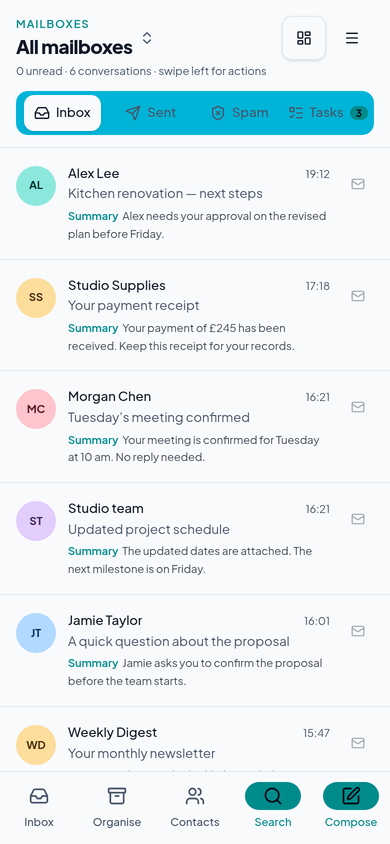
From bringing your inboxes together to organising conversations and finding answers with AI, CommsRadar helps you spend less time managing email and more time on what matters.
Launching soon — register your interest for early access. Wondering how your email is handled? Read about security and privacy.